After Effects Template · Powered by Magnific AI

Floating GIF & KV Animation Template

Generate seamless looping animations and key visual exports using AI, directly inside After Effects with the Magnific plugin. No complex setup. 4 steps to a finished asset.
After Effects 2024+ Magnific Plugin Seedance 2.0 KV Animation

Step-by-Step

Complete Workflow

Follow these six steps to generate your AI video and produce both final export formats from the template.

1
Open Plugin
2
Generate
3
Edit Comps
4
Export
1
Getting Started
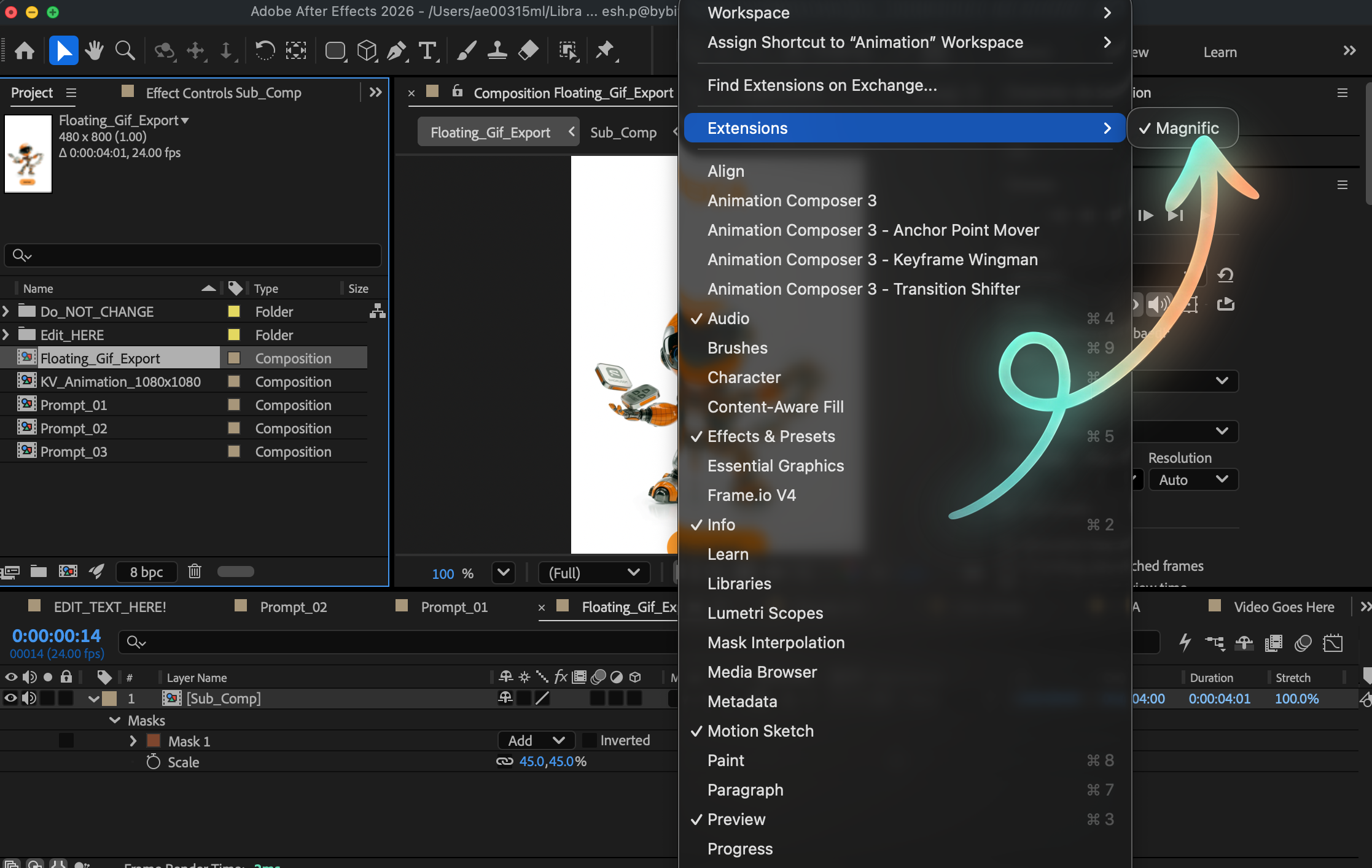
Open the Magnific Panel in After Effects
Open your project in After Effects. Then from the top menu bar navigate to:

Window → Extensions → Magnific
If Magnific is not listed, it needs to be installed first. Jump to the Installation Guide ↓
After Effects — Window > Extensions > Magnific
2
Navigation & Model Selection
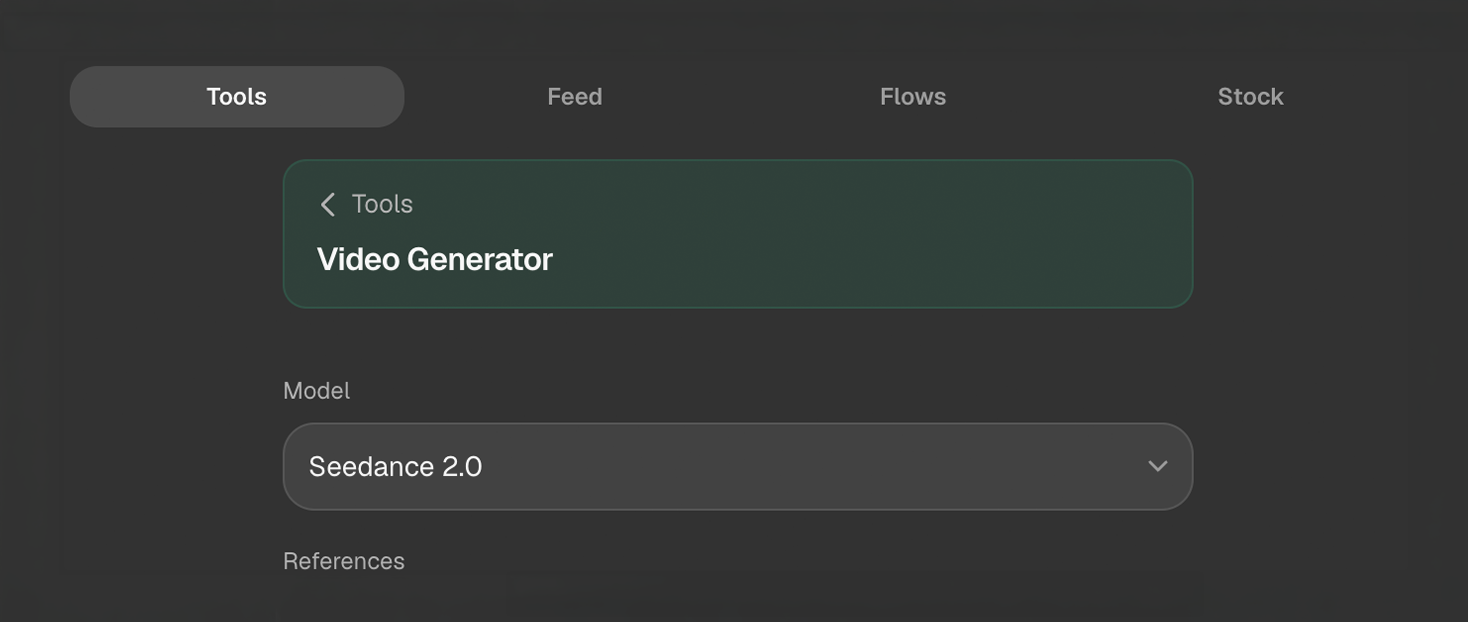
Tools → Video Generator → Seedance 2.0
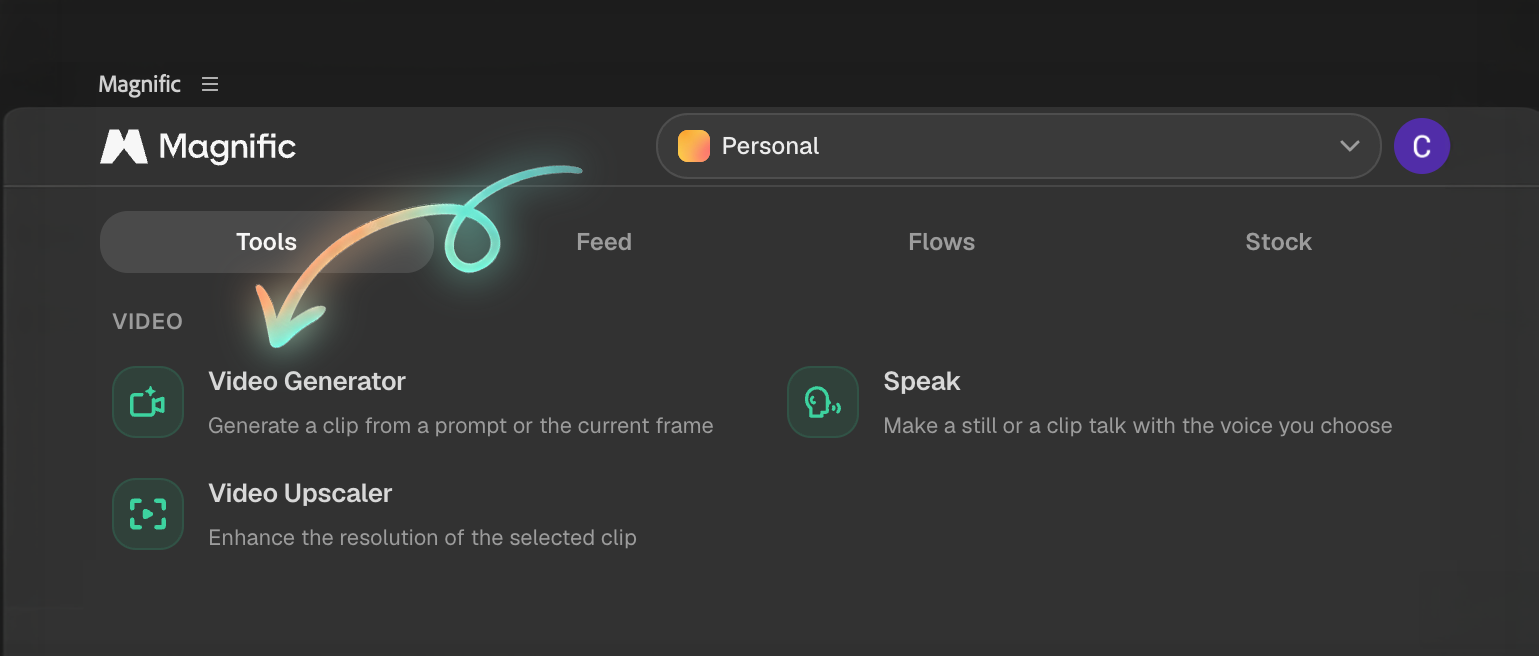
In the Magnific panel, click the Tools tab.
Under the VIDEO section, click Video Generator.

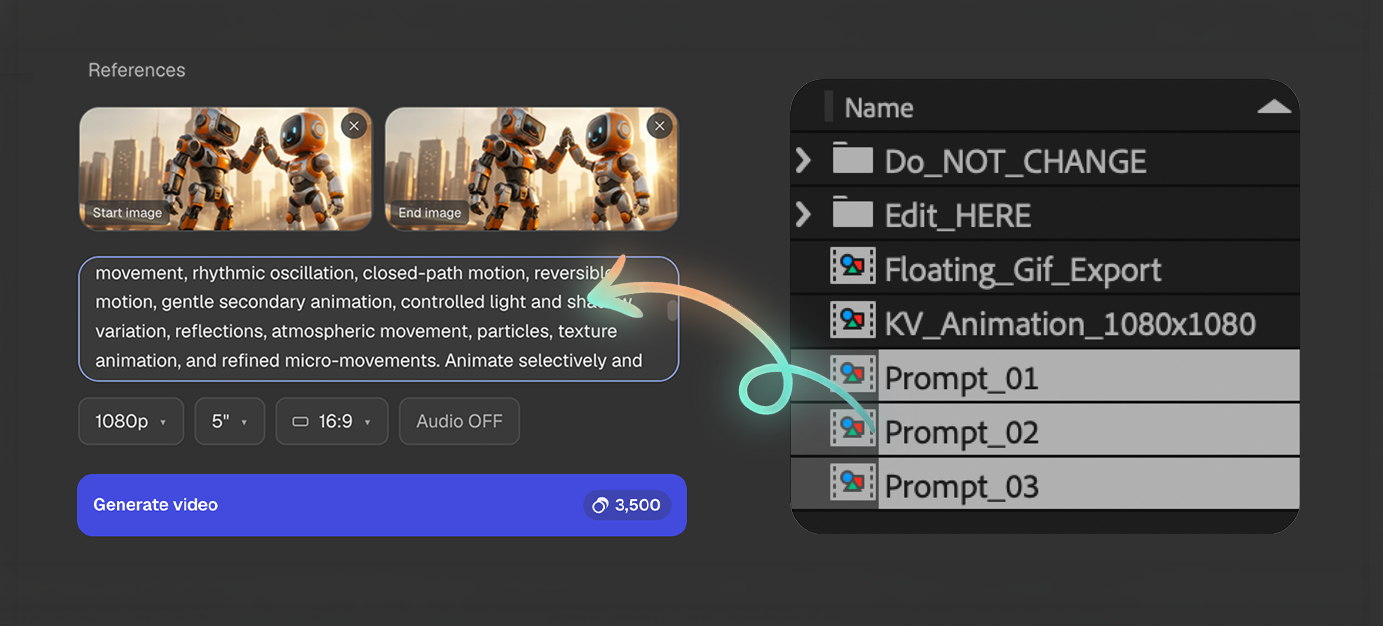
In the Video Generator:
• Set Model to Seedance 2.0 (Recommended)
• Upload the same image for both Start Image and End Image — this creates a seamless loop
• Copy a ready to use prompt from the AE Project bin and paste it into the prompt field:
Prompt_01
Open in AE → copy text
Prompt_02
Open in AE → copy text
Prompt_03
Open in AE → copy text
Double-click a Prompt comp in the Project bin → select all text → copy → paste into Magnific window
Generate
Click Generate Video
Do not close the Magnific panel while generating. Typically takes 1–3 minutes.
Magnific Tools panel
Video Generator — Seedance 2.0
References and Generate
3
Customise
Edit the After Effects Compositions
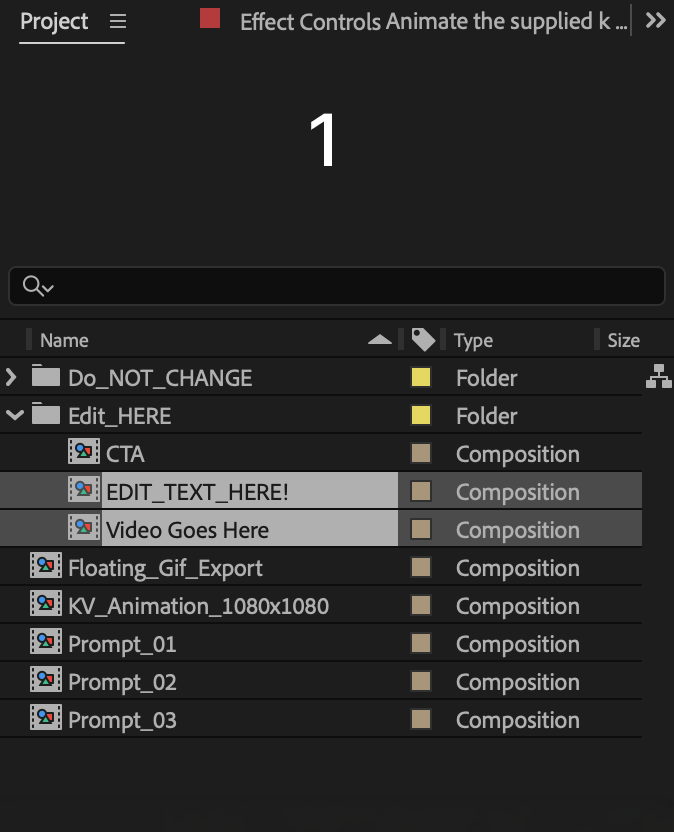
After the video is generated, open the Edit_HERE folder in the Project bin and update these three compositions (Ref: Image 1 below)
AE Project bin — Edit_HERE AE Project bin — Export comps
4
Export
Export Your Final Deliverables
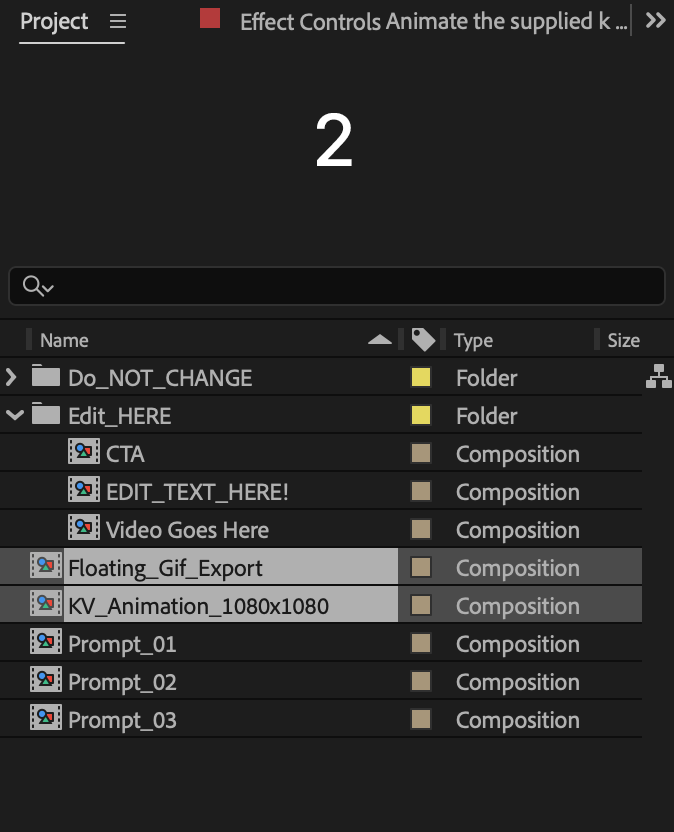
Export the Floating GIF and KV Animation compositions from the Project panel to generate your final assets (Ref: Image 2 above)
Floating GIF Export — 450×800
KV Animation — 1080×1080
Bot 02
Use File → Export → Add to Adobe Media Encoder Queue for both comps simultaneously to save time.

Prerequisites

Installing the Magnific Plugin

One-time setup. Takes about 5 minutes.

Step 01 — Account
Create a Magnific Account
Visit magnific.ai and sign up for an account.
A paid plan is required to use the Video Generator tool (3,500 credits per generation).
Step 02 — Download
Download the AE Extension
In your Magnific dashboard, navigate to Extensions → After Effects and download the .pkg installer package.
Step 03 — Install
Install & Restart
Open the .pkg file and follow the installer steps. Once installed, restart After Effects. Magnific will appear under Window → Extensions.

Ready to Start?

Download the AE Project

Everything is pre-built. Open the project, generate your AI video, swap in the editable comps and export.

Download Project (.zip)